How to make a music video of yourself on iPhone
This guide is about a performance video: you film yourself singing or playing, take by take, and Musaic puts the takes together into one music video. It is not a slideshow of photos and not an AI video. You record the first take, add more takes as layers while the earlier ones play back, and show them side by side in Mosaic, cut between them in Live Studio, or put yourself twice into one shot with Twin. The export is an .mp4 in 9:16 or 16:9, free with a watermark.
Musaic - Recording Studio is free for iPhone and iPad. Where a step needs Musaic Pro, the guide says so.
You need: Musaic on an iPhone or iPad, headphones, and a tripod or a steady place for the phone. Recording and export are free; the exported video carries a watermark unless you have Musaic Pro.
-
Choose the kind of video
Start a new project and pick the mode. Mosaic shows up to 10 takes side by side in a split screen. Live Studio shows one take at a time and lets you cut between them. Twin puts you into the same shot more than once. Then pick the format: TikTok / Reels / Shorts (9:16) or YouTube (16:9).
-
Record the first take
Tap the round record button in the Overview and choose Record video. Perform the whole song once, for example vocal and guitar. If the song exists as an audio file, choose Import and Audio from Files first, then perform over it.
-
Add more takes as layers
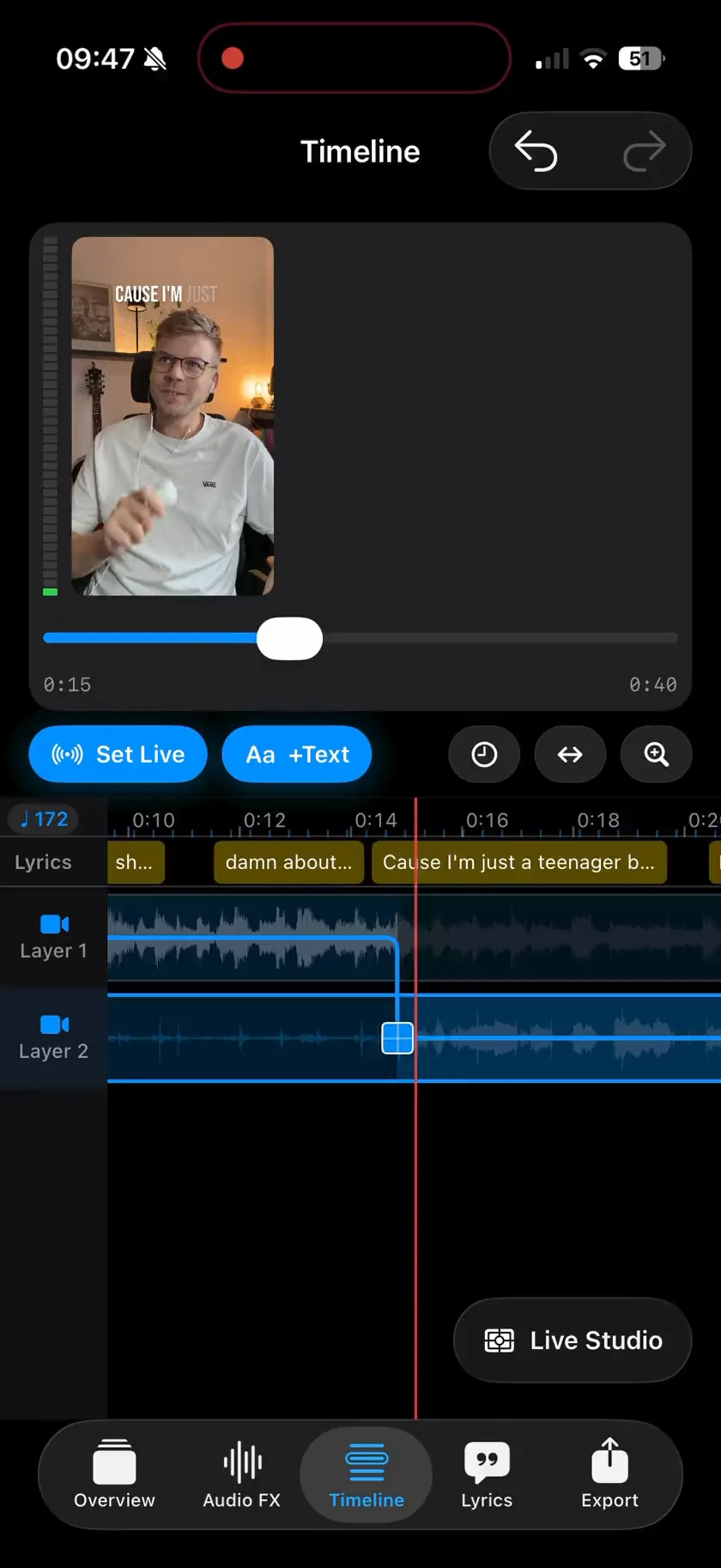
Tap the record button again. The earlier takes play in your headphones while you record the next one: a harmony, the guitar from the side, a close-up. Every take is a layer, up to 10. If a take sits late, move it with Sync Offset.
-
Arrange the takes
In Mosaic, the Layout & Border button on the preview picks one of 77 layouts. In Live Studio, open the Timeline tab, tap Live Studio, play the song and tap a camera to cut to it. In Twin, Musaic cuts you out of each new take and lays you over the first picture.
-
Mix the sound
In the Audio FX tab, give each layer its volume, a room such as Room or Hall, and EQ. The effects change only the playback and the export; the takes stay as recorded.
-
Export
Tap the share icon at the top right of the Overview. Under Video Quality, choose 1080p or 4K and 30 or 60 fps, then tap Export and post the .mp4 to Reels, TikTok or YouTube.
-
Mosaic
77 split-screen layouts with up to 10 panes, and the layout can change during the song.
-
Live Studio
Every take plays underneath; a tap on a camera puts it on screen, like a live music video edit.
-
Twin
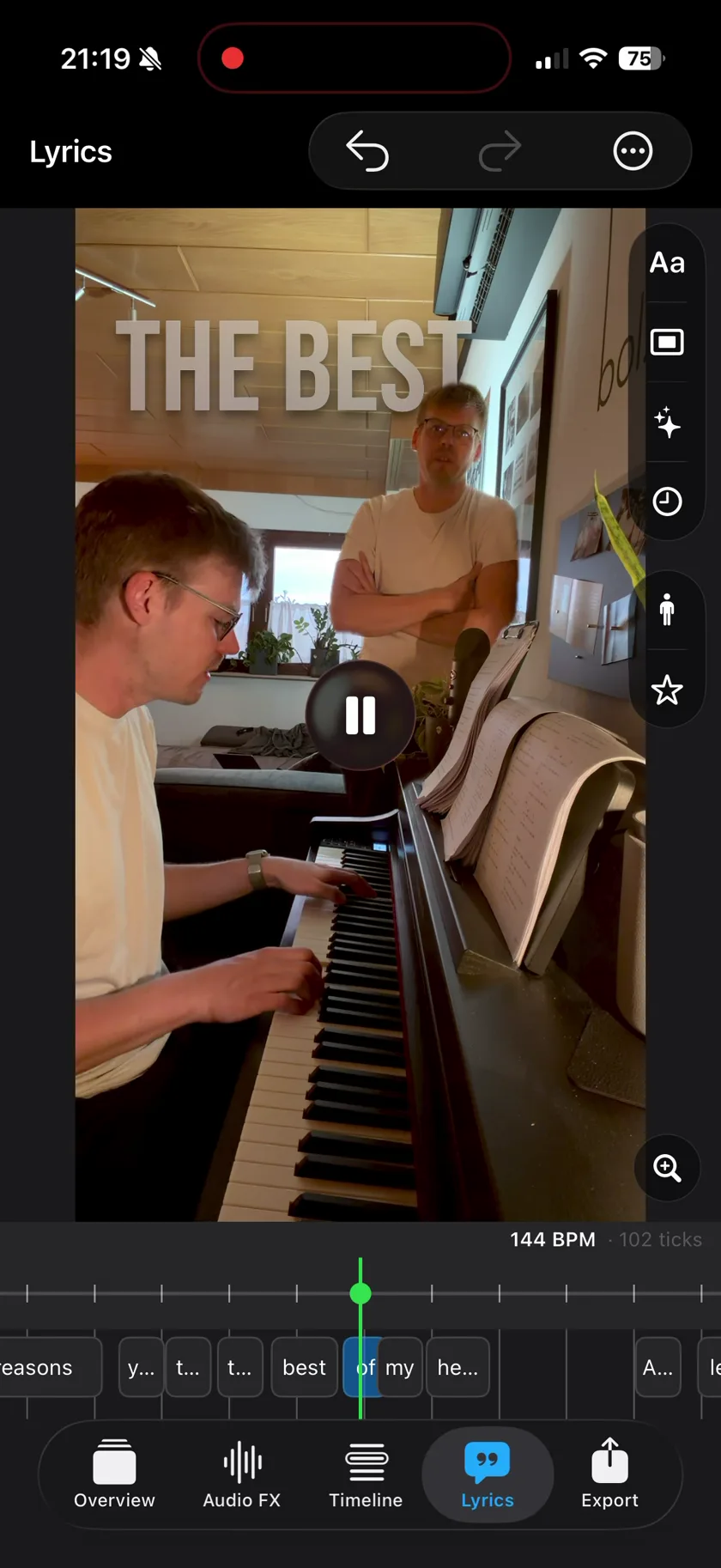
You, twice or more, in one undivided shot. Needs a camera that does not move. Marked Beta in the app.
-
Synced lyrics Pro
The words of your vocal appear in time with the song.
-
Can Musaic make a music video from photos or with AI?
No. Musaic films you performing. It has no photo slideshow and no AI-generated video. With Musaic Pro, Animations draws scenes from your lyrics over the video.
-
Is it free?
Recording, all three modes, Audio FX and the export are free. The free export carries a watermark; Musaic Pro removes it and adds lyrics, animations and chord detection.
-
Can I use a song from Apple Music or Spotify?
No. Streaming songs are copy-protected and cannot be imported. Use a backing track you have as a file, or play the music yourself.
-
Do I need a tripod?
For Twin, yes: the camera must not move between takes. In Mosaic and Live Studio every take is its own shot, so a steady place for the phone is enough.
Musaic - Recording Studio is free on the App Store for iPhone and iPad, with weekly challenges and Ideas. Musaic Pro adds lyrics, animations, chord detection and Audio Lab, and removes the watermark.
- How to record a split-screen music video on iPhoneGuide
- How to cut between camera angles live on iPhoneGuide
- How to appear twice in the same video on iPhoneGuide
- Export your video, the audio, or every track separatelyGuide
Written for Musaic 2.1.0.