Export your video, the audio, or every track separately
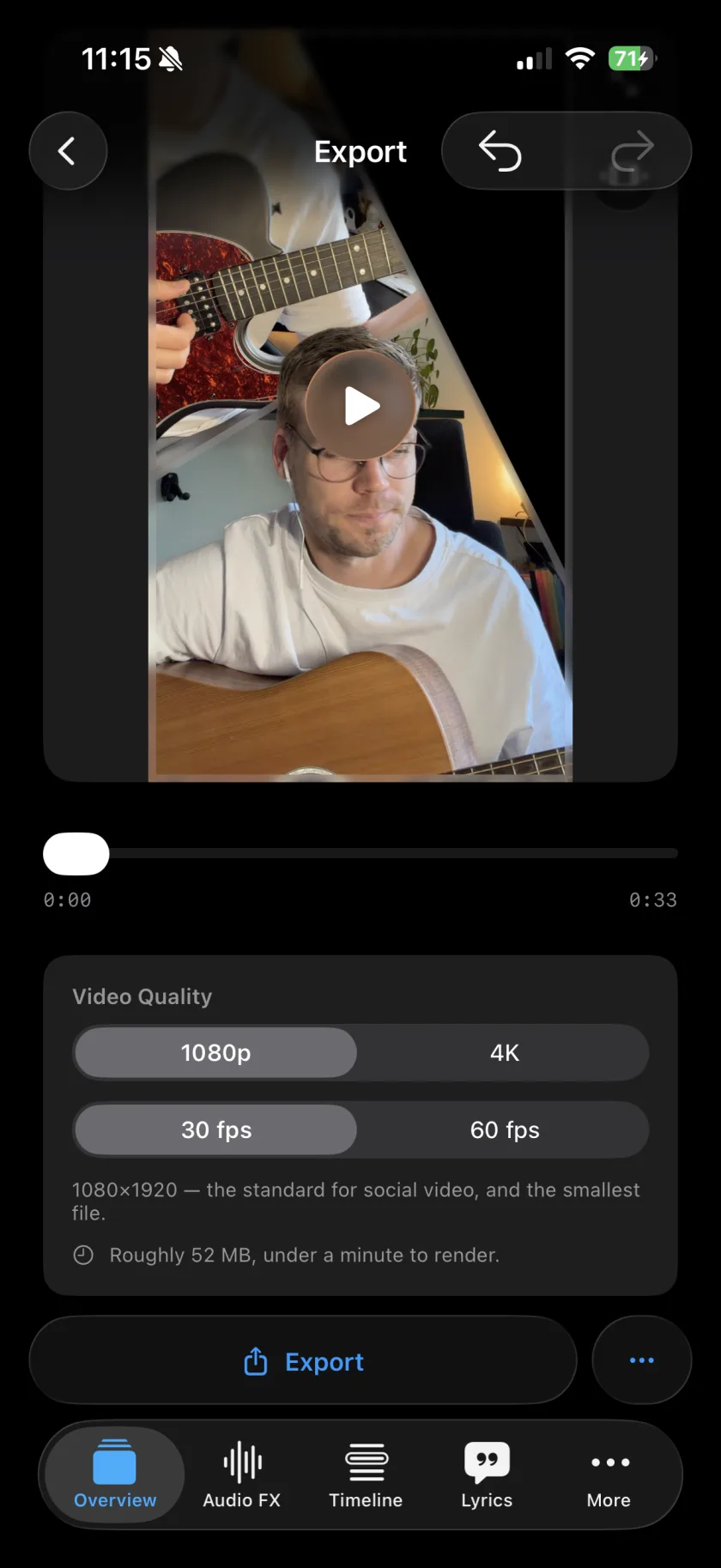
The export screen renders your video as an .mp4 in 1080p or 4K at 30 or 60 fps, in the format you chose for the project (9:16 or 16:9). More exports adds the mix as an .m4a file and Export Raw: a zip with every layer's audio and video, the MIDI notes of instrument layers and the lyrics. The free version puts a watermark on the video; Musaic Pro removes it.
You need: Nothing extra. Exports are free; without Musaic Pro the video carries a watermark.
-
Open the export screen
Tap the export button, the share icon at the top right of the Overview. The format of the video comes from the project: 9:16 or 16:9. Hold the button instead for Source exports…, the single layers.
-
Set the quality
Under Video Quality, choose the Resolution (1080p or 4K) and the Frame rate (30 fps or 60 fps).
-
Export
Tap Export. In an Audio project the button reads Export audio and writes an .m4a file.
-
Take single parts
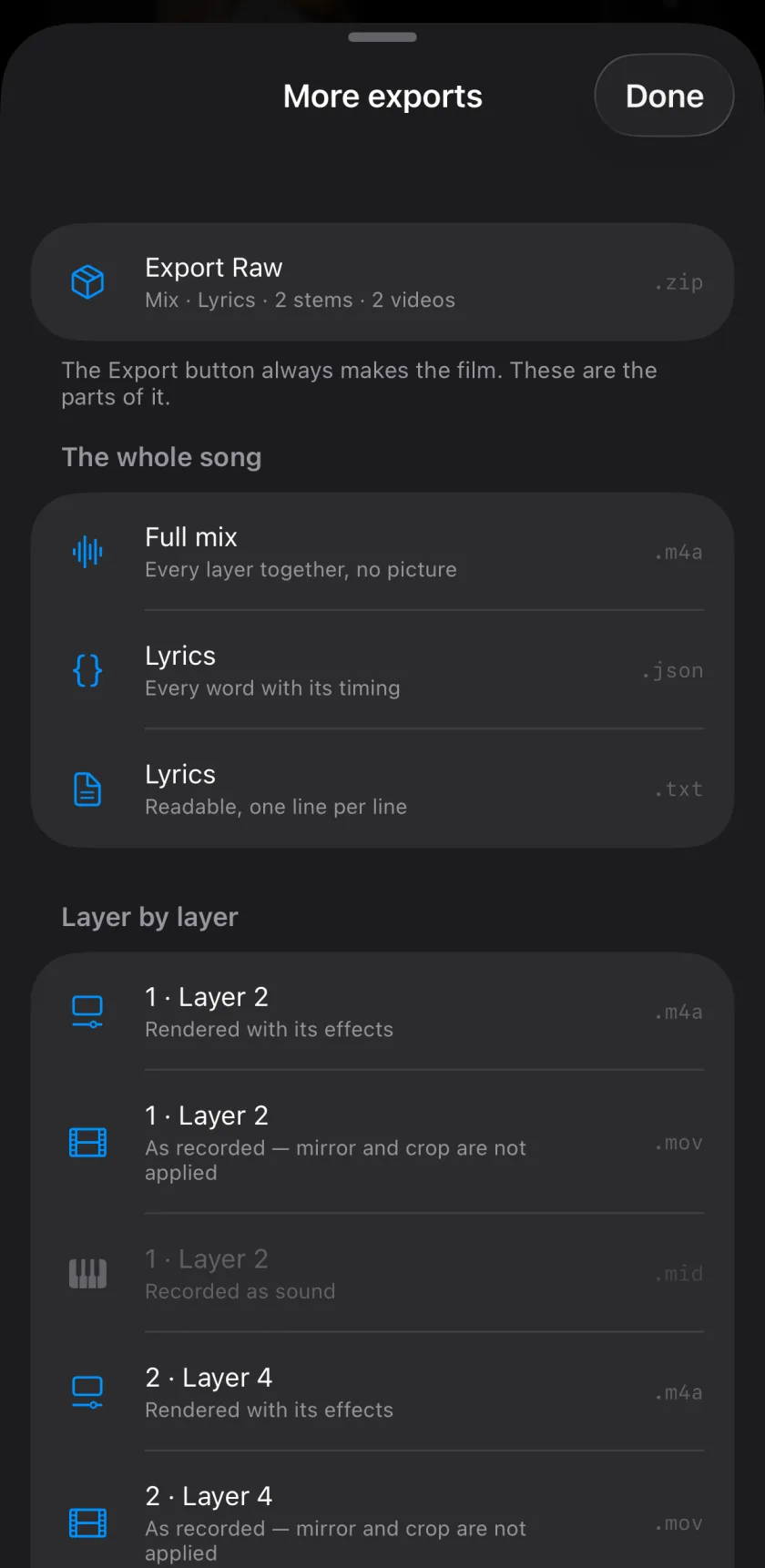
The ••• button next to Export opens More exports: the mix alone, one layer's audio or video, the lyrics, or Export Raw with everything.
-
Video
An .mp4 in 1080p or 4K, at 30 or 60 fps.
-
The mix
The whole song as AAC in an .m4a file.
-
Export Raw
A zip with the mix, every layer's audio with its effects, every layer's video as recorded, MIDI files of instrument layers, the lyrics as text and JSON, and a list of what was applied.
-
Single files
Take only one layer, its notes or the lyrics, without the zip.
-
Where is the watermark?
Every video from the free version carries one; Musaic Pro removes it. Audio projects never have one.
-
Is the raw video mirrored?
The video in Export Raw is the take as recorded: mirror and crop are not applied.
-
Why no MP3?
The audio is AAC in an .m4a file, which iPhone, Mac and most apps open directly.
Musaic - Recording Studio is free on the App Store for iPhone and iPad. Musaic Pro adds lyrics, animations, chord detection and Fix audio, and removes the watermark.
Written for Musaic 1.4.0.