How to record audio only, without the camera
An Audio project is Musaic without the camera. You record layer after layer while the earlier ones play back, with the same effects, instruments and timeline as the video modes, and export the mix as an AAC file (.m4a). Because there is no picture, there is no watermark either.
You need: Musaic on an iPhone or iPad. Audio projects are free.
-
Create an Audio project
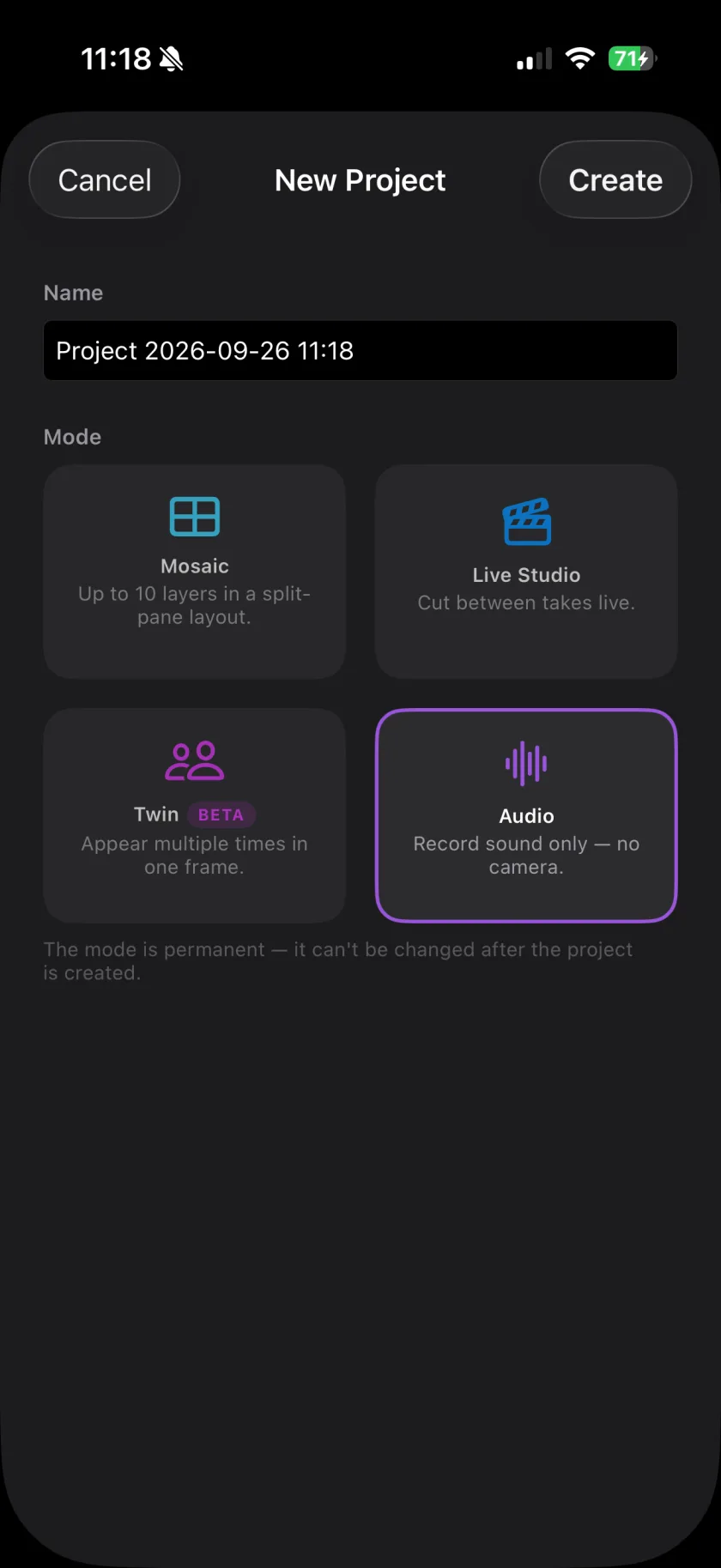
Start a new project and tap the Audio card ("Record sound only - no camera."). There is no format to choose.
-
Record or import
Tap Record and choose Record audio, or Import audio… to bring in a file from Files (m4a, mp3, wav, aiff or caf).
-
Add more layers
Tap Record again for the next layer. The earlier layers play back while you record, up to 10 layers.
-
Mix
Give each layer its own reverb, EQ and compression in the Audio FX tab.
-
Export
Tap the export button at the top right of the Overview. In an Audio project it reads Export audio and writes the mix as an .m4a file.
-
Can I add video later?
No. The mode stays with the project. Start a Mosaic or Live Studio project for video.
-
Can I get every layer as its own file?
Yes. More exports and Export Raw write each layer separately. See the export guide.
-
Why .m4a and not MP3?
The export is AAC in an .m4a file. iPhone, Mac and most music apps open it directly.
Musaic - Recording Studio is free on the App Store for iPhone and iPad. Musaic Pro adds lyrics, animations, chord detection and Fix audio, and removes the watermark.
- How to record a song with several tracks on your iPhoneGuide
- Export your video, the audio, or every track separatelyGuide
Written for Musaic 1.4.0.