How to record a split-screen music video on iPhone
In Musaic, a split-screen video is a Mosaic project. You pick Mosaic and a layout when you create the project, then record one take per pane: every new take is recorded while the earlier ones play back, so all of them stay in time. There are 77 layouts with 1 to 10 panes, and the layout can change during the song.
You need: Musaic on an iPhone or iPad, and headphones so the playback stays out of the new take. Mosaic is free; the exported video carries a watermark unless you have Musaic Pro.
-
Create a project and choose Mosaic
Start a new project, give it a name and tap the Mosaic card ("Up to 10 layers in a split-pane layout."). Below it, pick the format: TikTok / Reels / Shorts (9:16) or YouTube (16:9). The mode stays with the project, so decide here.
-
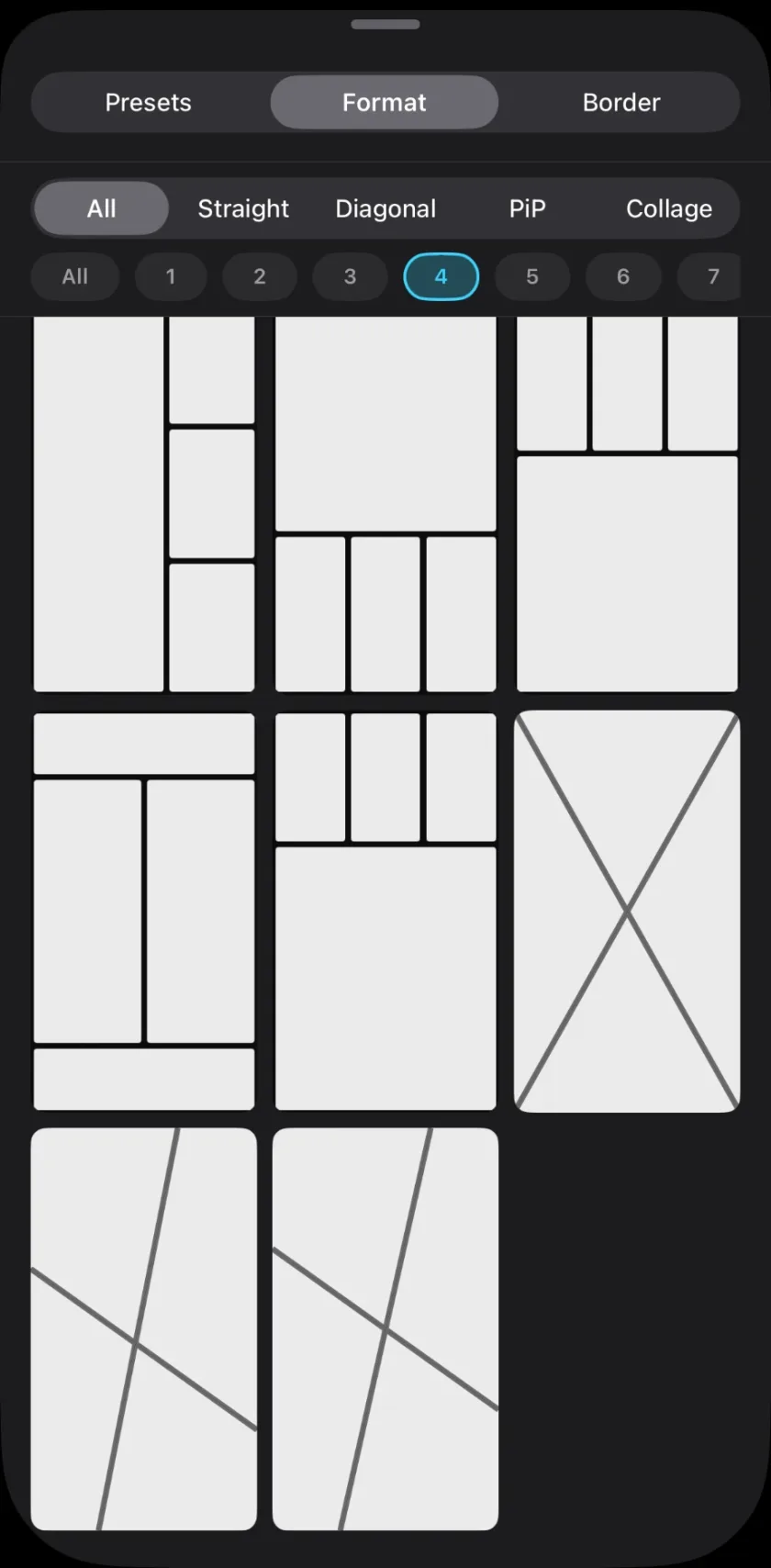
Pick a layout
The second step shows the layouts. Take the one you want to start with. You can change it at any time with the Layout & Border button on the preview.
-
Record the first take
Tap the Record tile and choose Record video + audio. The first take sets the song. If you already filmed it, choose Import video… instead.
-
Record the next pane
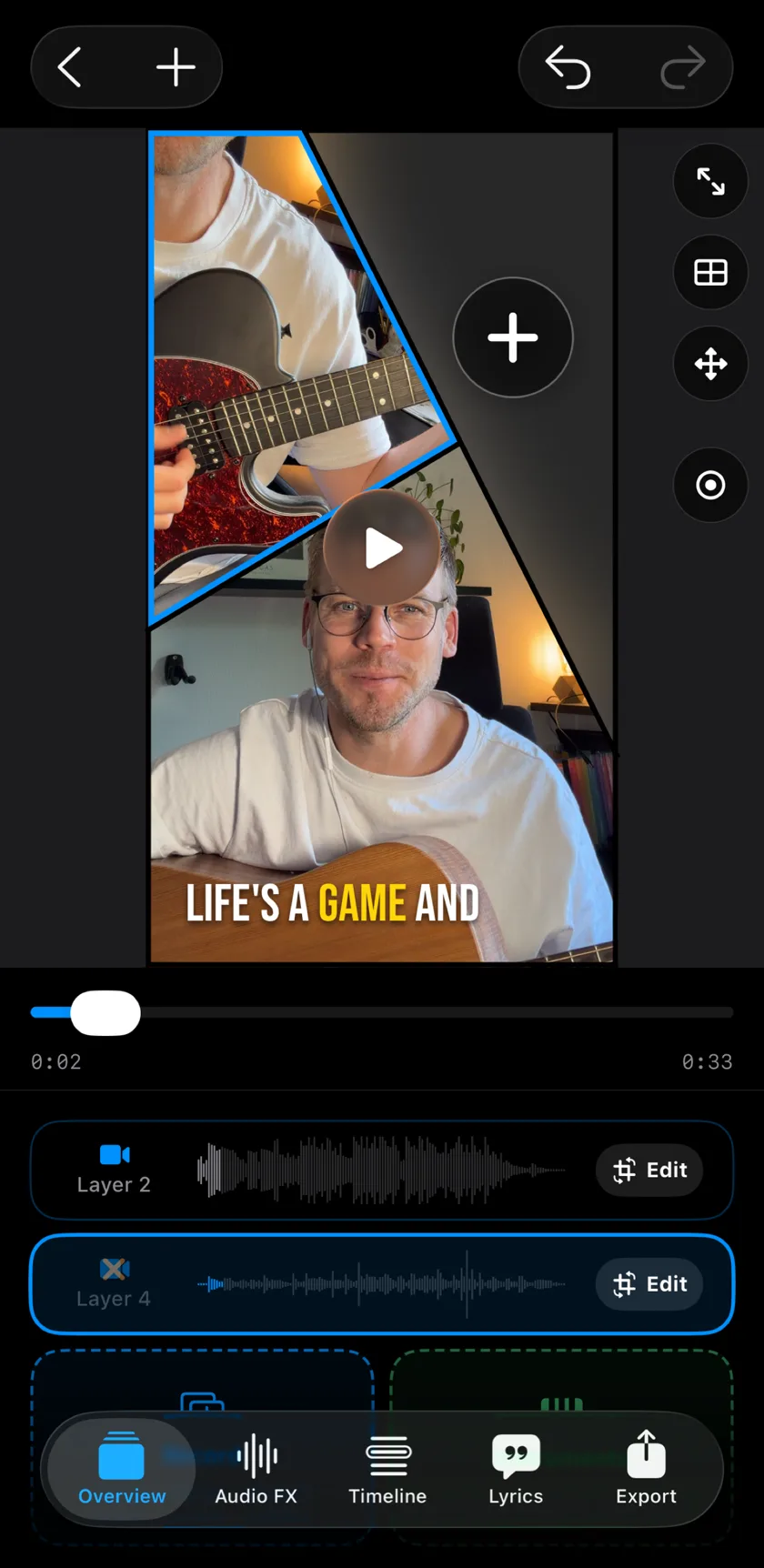
Tap Record again. The earlier takes play in your headphones while the camera records the new one, and the new take fills the next pane. Repeat until every pane is filled, up to 10 takes.
-
Line the takes up
If a take sits a little early or late, tap the clock icon on that layer to open Sync Offset and move it in 1 ms steps.
-
Export
Tap the export button, the share icon at the top right of the Overview. Choose 1080p or 4K and 30 or 60 fps, then tap Export.
-
Layout & Border
77 layouts in four families, Straight, Diagonal, PiP and Collage, from 1 to 10 panes. Filter them by family or by the number of panes.
-
Format change
Change the layout during the song. In the Timeline, tap + and choose Format change: the new layout starts at the playhead, with a cut or a crossfade into it.
-
Adjust framing
Drag a take to move it inside its pane, pinch to zoom, double-tap to reset. Fit whole clip and Fill frame switch between the whole picture and a filled pane.
-
Lean over border
Your head or your guitar can reach over the divider into the next pane. Long-press the layer, choose Lean over border… and pick the Subject: Person, Person + gear or Green screen.
-
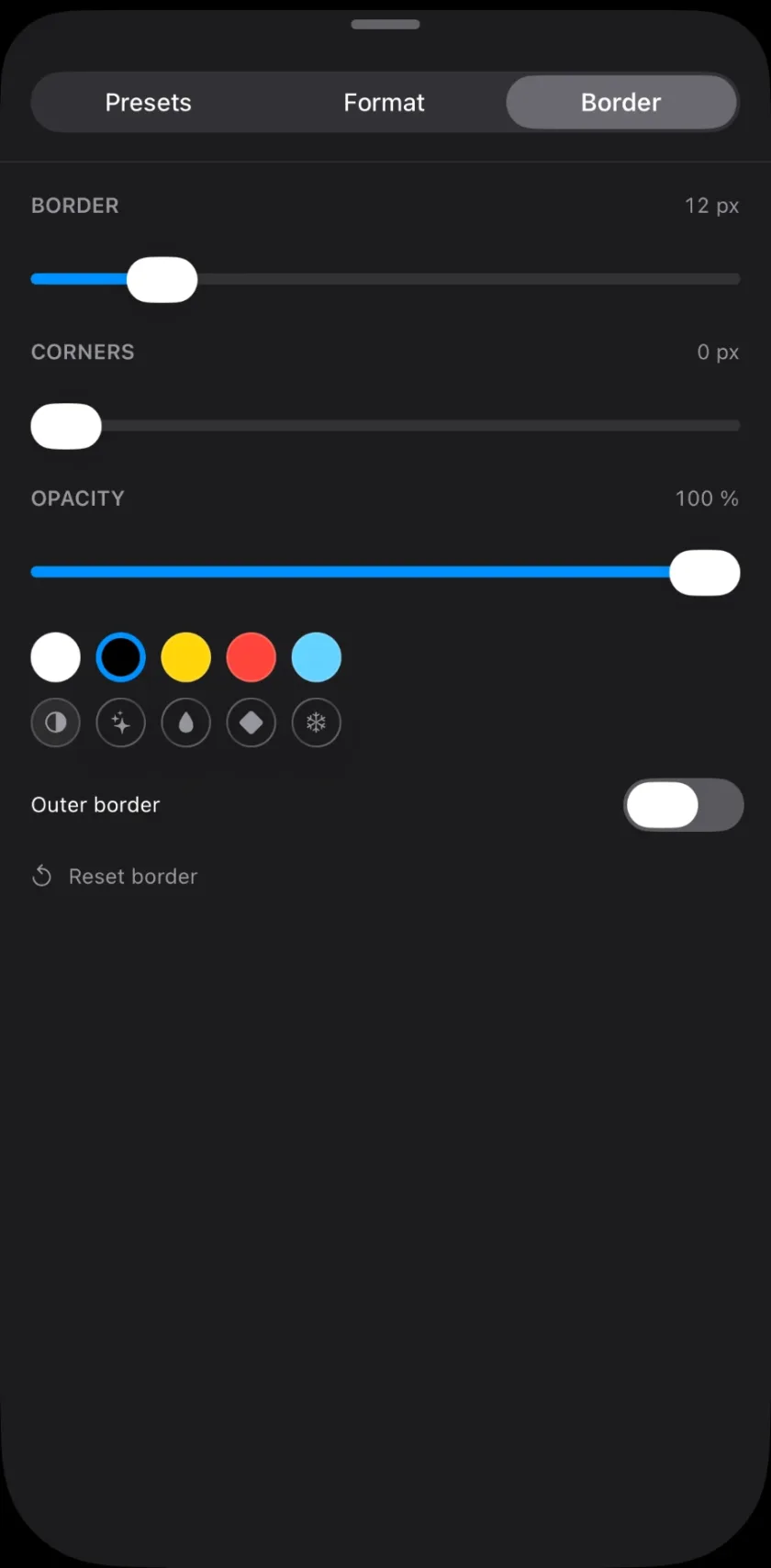
Border
Thickness, corners and opacity of the dividers, a colour or a glass look, a shadow for PiP layouts, and an Outer border.
-
Layout presets
Save a layout with its border as a preset and apply it again in the next project.
-
Can I change the mode later?
No. The mode is chosen when you create the project and stays with it. Start a new project for a different mode.
-
Do I need a tripod?
Not for Mosaic: every pane is its own shot. Twin is the mode that needs a camera that does not move.
-
Is Mosaic free?
Yes. Recording, all 77 layouts, the border and Lean over border are free. Musaic Pro removes the watermark from the export.
Musaic - Recording Studio is free on the App Store for iPhone and iPad. Musaic Pro adds lyrics, animations, chord detection and Fix audio, and removes the watermark.
- How to cut between camera angles live on iPhoneGuide
- How to appear twice in the same video on iPhoneGuide
- How to record a song with several tracks on your iPhoneGuide
Written for Musaic 1.4.0.