How to make a one-person band video where you play every instrument
To make a one-person band video, record the instrument that carries the song first, then film yourself on every other instrument while the earlier takes play in your headphones. In Musaic every take is its own layer: Mosaic shows all of them side by side in a split screen, Live Studio cuts between them like a live concert edit. Up to 10 takes, each with its own volume and effects, and the built-in instruments fill in a part you have no instrument for. Recording and export are free.
Musaic - Recording Studio is free for iPhone and iPad. Where a step needs Musaic Pro, the guide says so.
You need: Musaic on an iPhone or iPad, headphones, and a steady place for the phone. Recording and export are free.
-
Choose how the band appears
Start a new project. Mosaic puts every instrument on screen at once, in one of 77 layouts. Live Studio shows one instrument at a time and you cut between them. Pick 9:16 or 16:9.
-
Set the tempo
In the recorder, turn on Metronome, set the Tempo or use Tap tempo, and add a Count-in. With headphones the click stays out of every take.
-
Record the foundation
Tap Record and choose Record video. Start with what holds the song together, usually drums or a guitar with the vocal.
-
Add each instrument on top
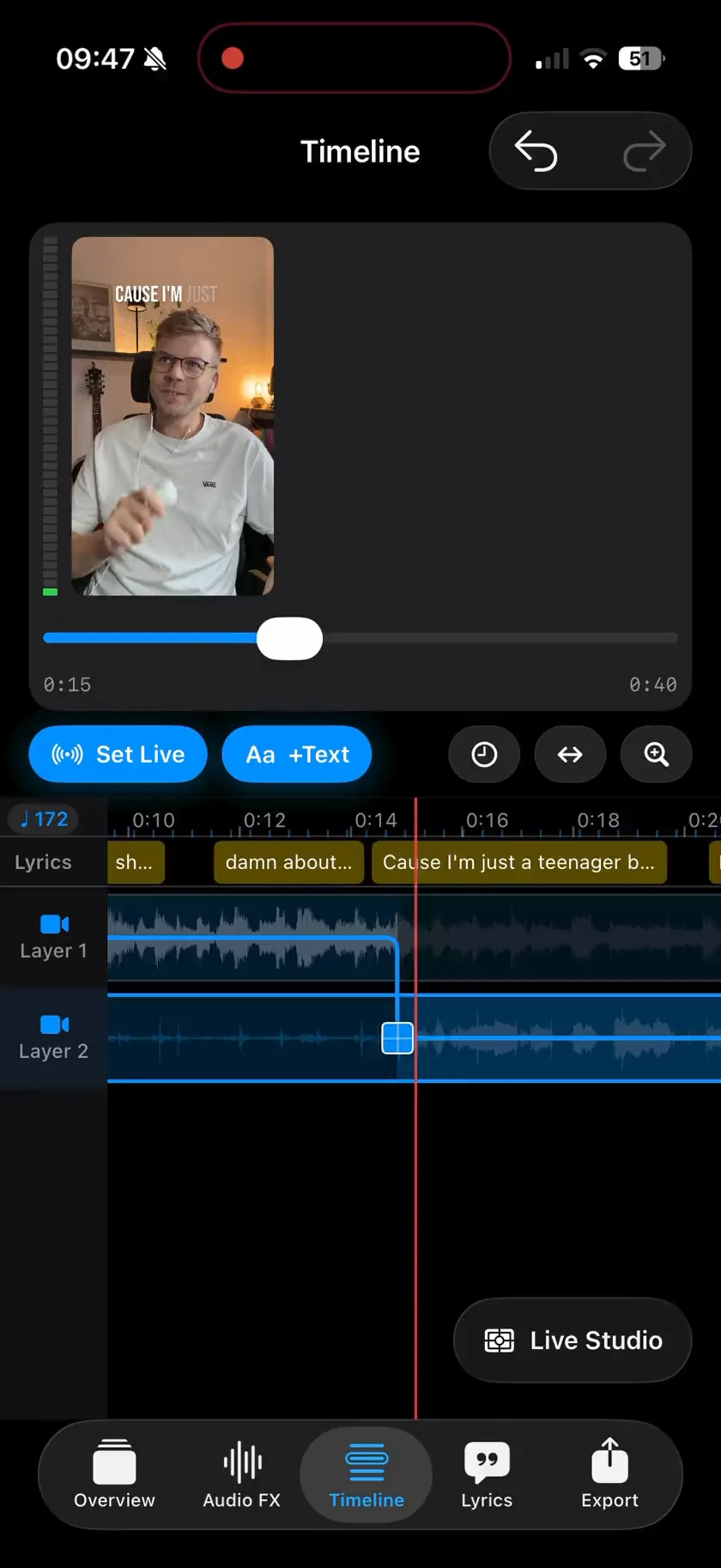
Tap Record again for the bass, the keys, the second guitar. The earlier takes play in your headphones, and each new take lands on its own layer and, in Mosaic, in its own pane. Auto Align offers to line up a take that sits late.
-
Fill a gap with a built-in instrument
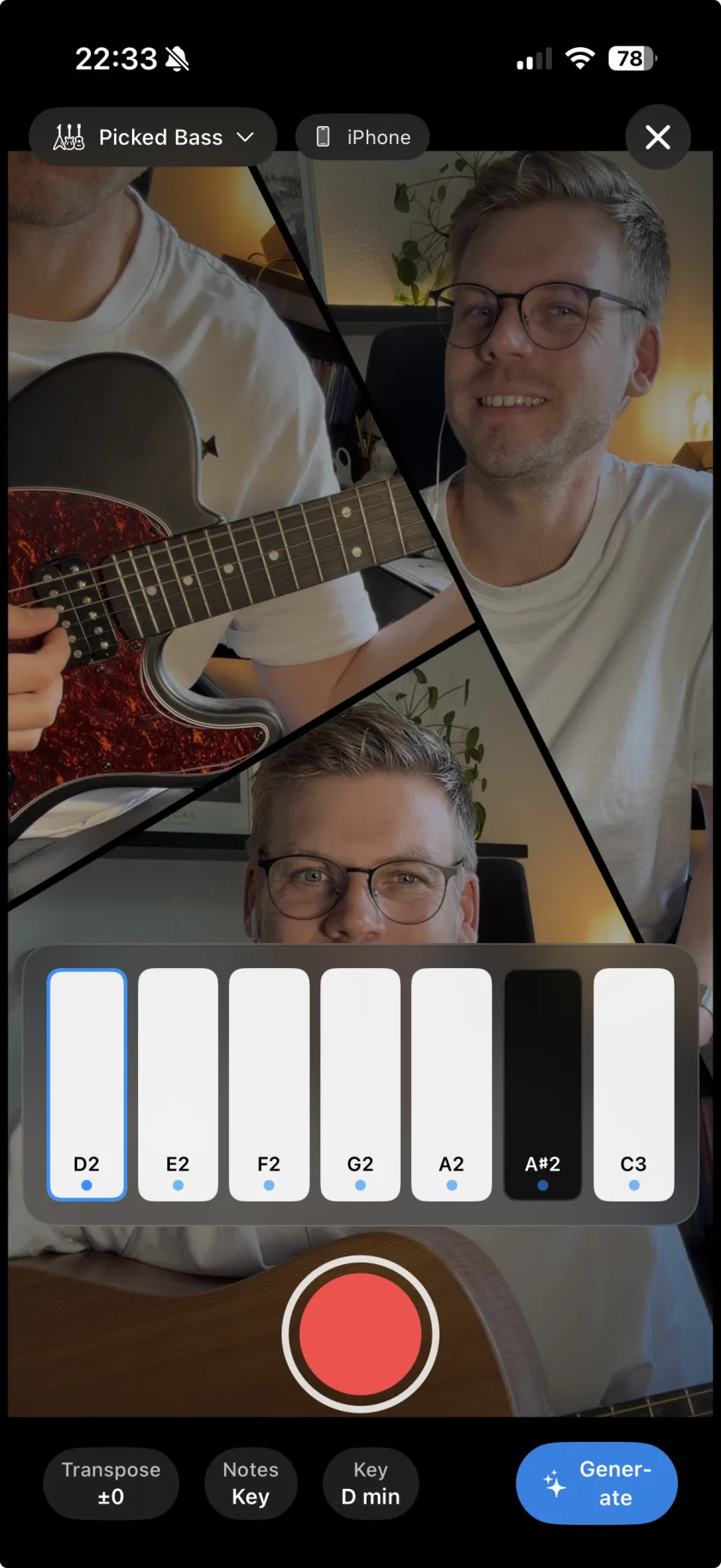
No bass or drum kit at home? Tap Add layer, choose Instruments and play bass, drums, keys, strings or synth on the screen or on a MIDI keyboard, straight onto a new layer.
-
Mix and export
Set each instrument's level and effects in the Audio FX tab. Then tap the share icon at the top right of the Overview, choose 1080p or 4K, and tap Export.
-
Split screen
77 layouts with up to 10 panes, so every instrument is in the picture at once.
-
Live Studio
Play the song and tap a camera to cut to it, like the edit of a live concert.
-
49 instrument sounds
Piano, bass, drums, synth, strings, guitar, harmonica, brass and mallets, free, on screen or on a MIDI keyboard.
-
Click and count-in
A click or a drum beat, 4/4, 3/4 or 6/8, up to 4 bars of count-in.
-
Twin
You twice or more in one undivided shot, for example at the drums and next to them. Needs a tripod. Marked Beta in the app.
-
How many instruments can I record?
Up to 10 takes in one project, in every mode.
-
Do I need a tripod?
For Mosaic and Live Studio a steady place for the phone is enough, because every take is its own shot. Twin needs a camera that does not move between takes.
-
Can I play a part I cannot play on a real instrument?
Yes. The built-in instruments are free and record onto their own layer. See Play instruments on your iPhone.
-
Is it free?
Recording, all modes, the instruments, Audio FX and the export are free. Musaic Pro adds lyrics, chord detection, Autogenerate for bass, drums and keys, and export without watermark.
Musaic - Recording Studio is free on the App Store for iPhone and iPad, with weekly challenges and Ideas. Musaic Pro adds lyrics, animations, chord detection, Audio Lab and export without watermark.
- How to record a split-screen or a cappella music videoGuide
- Play instruments on your phone, on screen or with a MIDI keyboardGuide
- How to cut between camera angles liveGuide
- How to record a song with several tracks on your phoneGuide
Written for Musaic 2.1.0.