How to sing one part of a take again
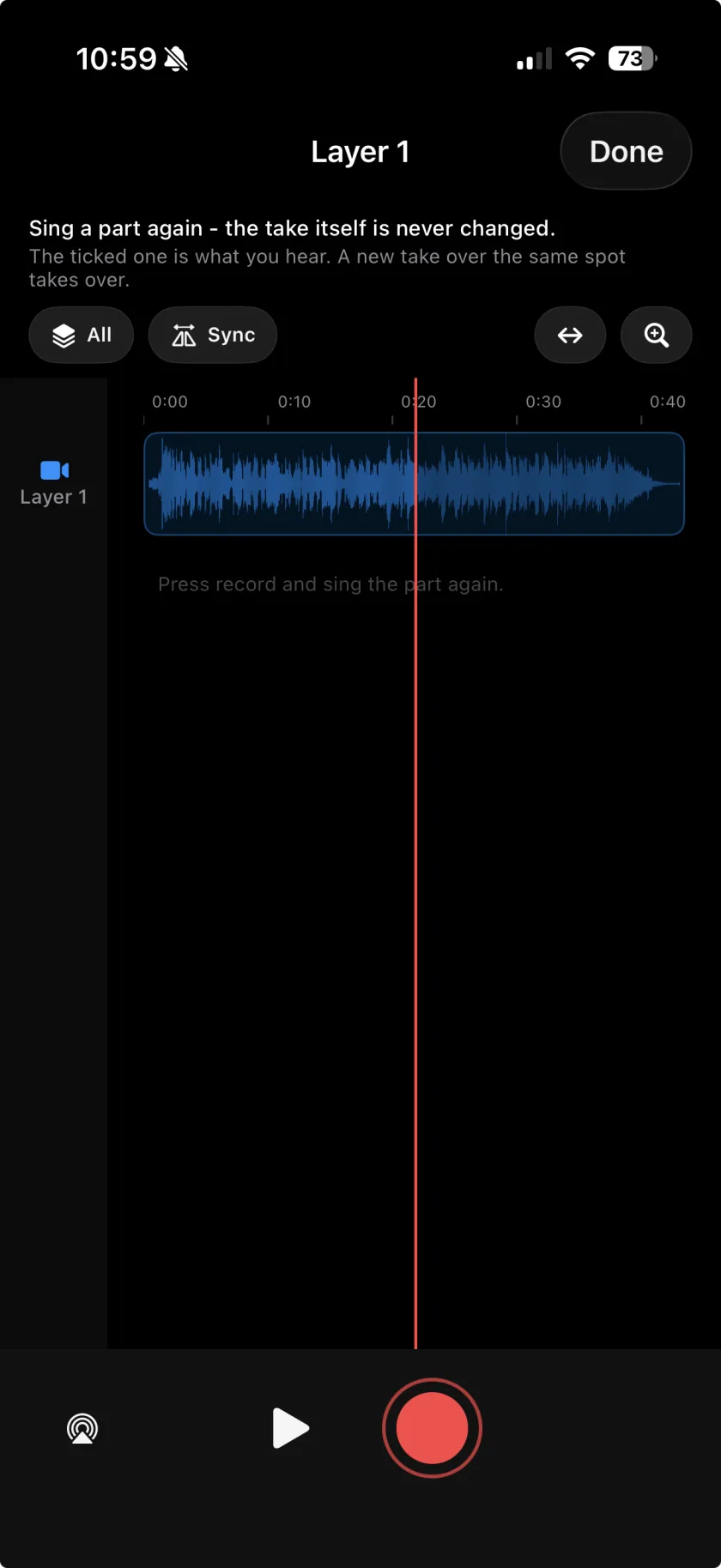
Fix audio lets you sing one part of a layer again without redoing the whole take. You mark the layer on the timeline, record a new take over the stretch you want to replace, and choose which version plays; the original take itself is never changed. Fix audio is part of Musaic Pro.
You need: Musaic Pro, and headphones.
-
Mark the layer
In the Timeline tab, tap the lane of the layer you want to fix.
-
Open Fix audio
Tap the Fix audio pill next to the + button.
-
Record over the part
Go to the spot and record. The new take lies over that stretch and plays instead of the original there. All lets you hear the whole song while you sing, Layer only this layer.
-
Pick and trim
Tap a fix to select it. Drag its edges to trim it, nudge it by 1 or 10 ms, or choose Use this one, Silence or Delete from its menu.
-
Finish
Tap Done. The layer now plays with the fix; the picture of the take stays the same.
-
Is my original take lost?
No. The take itself is never changed. Delete the fix and the original plays again.
-
Can I try several times?
Yes. Fixes over the same spot stack in rows. The ticked one is the one you hear.
-
The new part sits slightly off
Sync moves the sound of this layer against its picture: the sound moves, the picture stays.
Musaic - Recording Studio is free on the App Store for iPhone and iPad. Musaic Pro adds lyrics, animations, chord detection and Fix audio, and removes the watermark.
- How to record a song with several tracks on your iPhoneGuide
- Audio effects for every layer: reverb, EQ and compressionGuide
Written for Musaic 1.4.0.