Headphones, AirPods and the speaker: recording without bleed
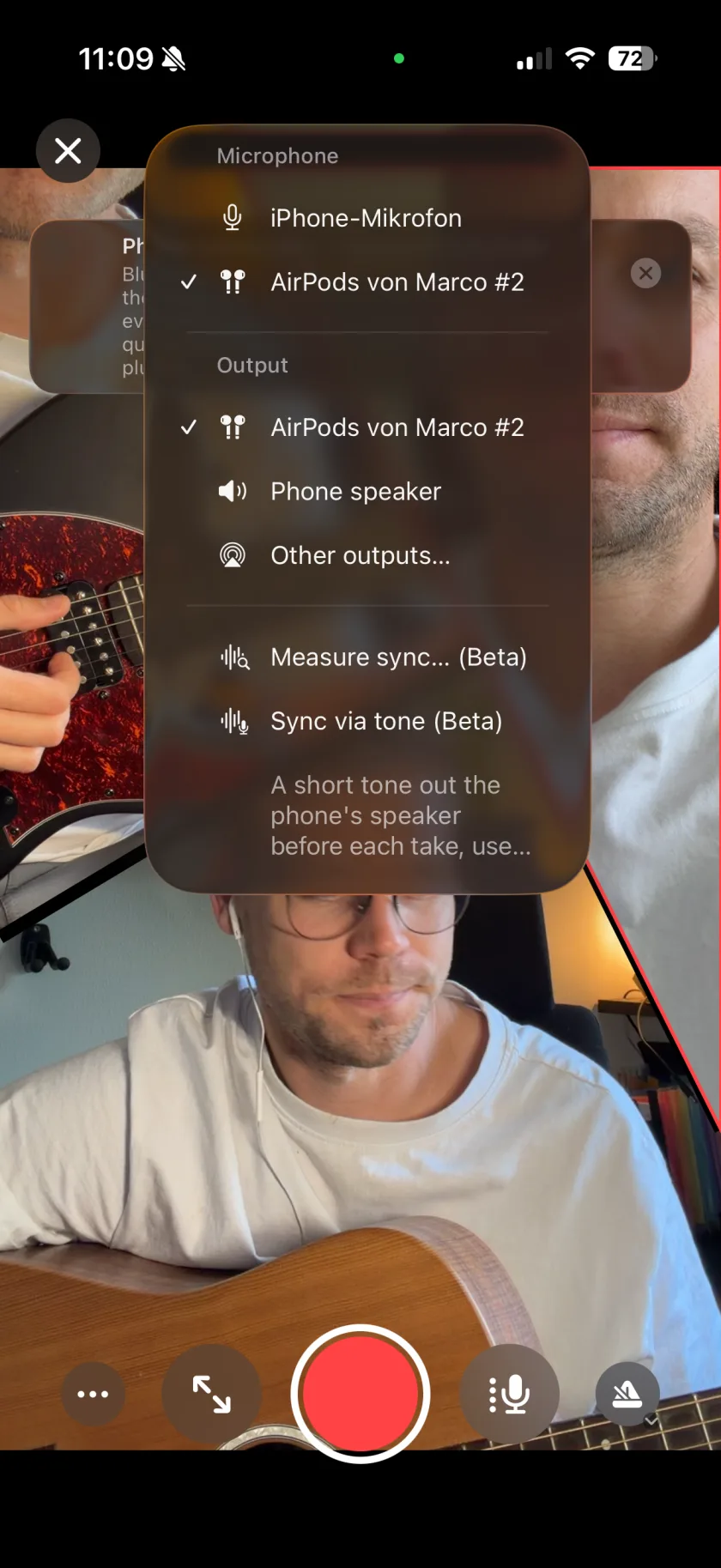
When you record a second layer, the first one plays back. Over the iPhone speaker, that playback reaches the microphone and is recorded into the new layer, so the takes smear together. Wired headphones keep it out. With AirPods, Musaic plays through them but keeps recording with the iPhone microphone, because a Bluetooth microphone only records at phone-call quality. In the recorder you choose the microphone and the output separately.
You need: Wired headphones or earbuds. AirPods and other Bluetooth headphones work for listening.
-
Plug in headphones before you record
Without headphones the recorder shows No headphones connected: the backing track leaks into the microphone and ends up in the new layer.
-
Choose the microphone and the output separately
Tap the pill at the top of the recorder. It shows which microphone records and where you hear the sound, side by side. Under Microphone you pick the input, for example the iPhone or a wired headset; Record microphone audio switches the microphone off for a take. Under Output you keep your headphones, switch to the Phone speaker or open Other outputs….
-
With AirPods, keep the iPhone microphone
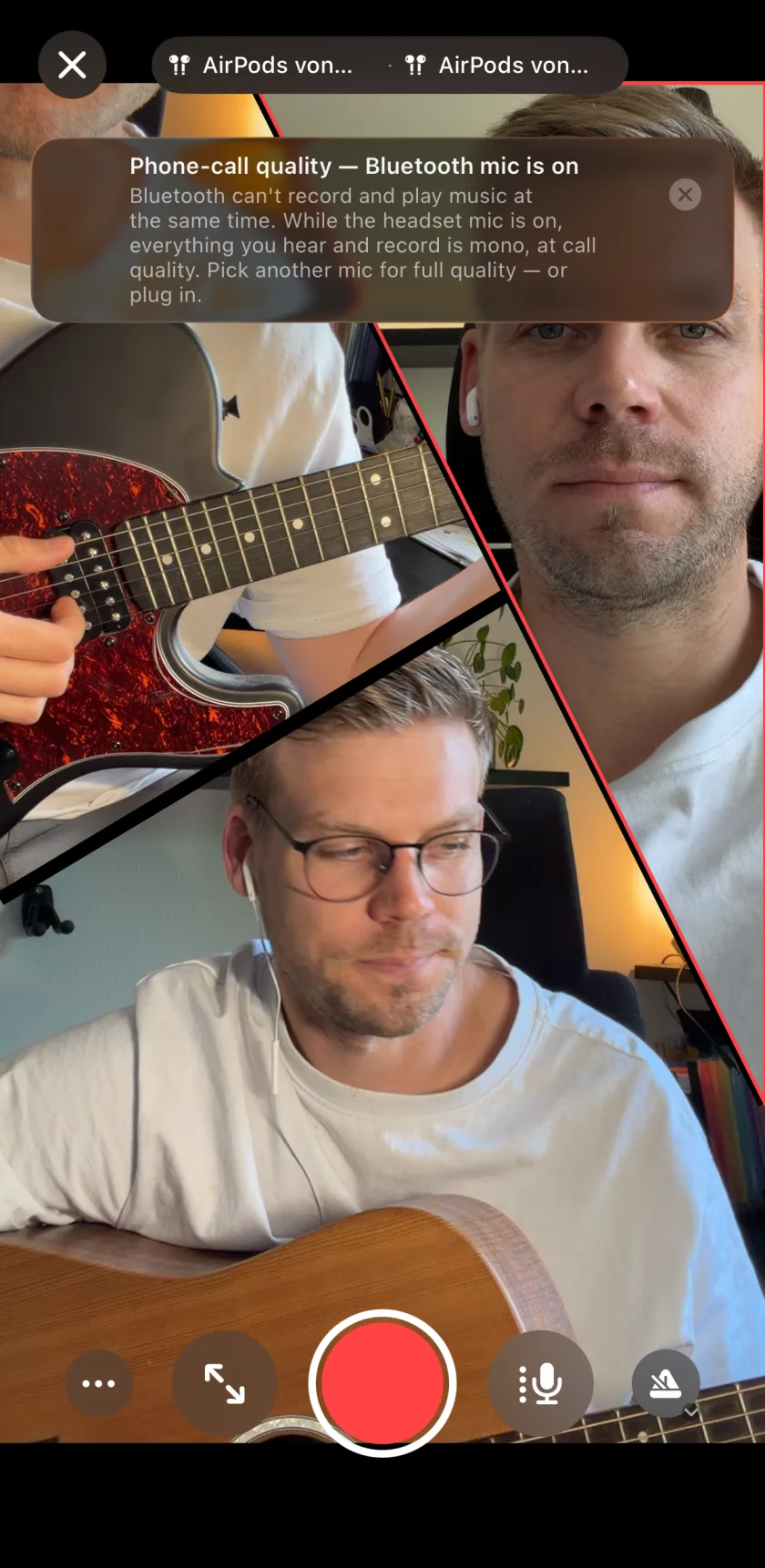
Musaic records with the iPhone microphone by default. The headset microphone is offered in the microphone menu as phone-call quality. If you choose it, everything you hear and record is mono and at call quality, and the recorder says so.
-
Let Musaic learn the delay
Bluetooth headphones add a delay. If a take sits late, correct its Sync Offset once. Settings keeps the value under Sync per output and microphone and uses it for the next takes with the same headphones.
-
Listen on the speaker with headphones connected
In the Overview, open Audio Out and turn on Phone speaker. The sound comes from the iPhone even while headphones are connected. The recorder keeps its microphone.
-
Headphone warning
The recorder warns when no headphones are connected, and when a Bluetooth microphone lowers the quality.
-
Microphone and output, chosen separately
One menu in the recorder with two sections: which microphone records, and where you listen. For example AirPods in your ears and the iPhone microphone recording. A Bluetooth headset microphone is only used if you pick it.
-
Sync per output and microphone
A remembered offset for every combination of headphones and microphone, in 5 ms steps, and a Default for new ones.
-
Phone speaker
Play through the iPhone speaker with headphones still connected. Handy for a sync measurement, because the microphone can always hear the speaker.
-
Measure sync… Beta
Plays a few clicks over the speaker and measures how late the microphone hears them, so you know the delay of your setup.
-
Sync via tone Beta
A short tone from the phone speaker before each take, used to line up the new layer. You will hear it.
-
Is there echo cancellation?
No. Musaic records the microphone as it is, without voice processing. That keeps the sound natural, and it is why headphones matter.
-
I can hear the metronome in my take
Without headphones the click plays over the speaker and the microphone picks it up. With headphones it stays out.
Musaic - Recording Studio is free on the App Store for iPhone and iPad. Musaic Pro adds lyrics, animations, chord detection and Fix audio, and removes the watermark.
- How to record a song with several tracks on your iPhoneGuide
- How to sing harmonies with yourself on iPhoneGuide
Written for Musaic 1.4.0.