How to record a video while music plays
To record a video while music plays on iPhone, import the song into Musaic as the first layer and record your video over it. The song plays in your headphones while the camera and the microphone record you, and the export puts the song and your take together in one video, in sync. Because the song is a layer of its own, you set its volume against your voice afterwards. The song must be an audio file you have, for example in Files.
Musaic - Recording Studio is free for iPhone and iPad. Where a step needs Musaic Pro, the guide says so.
You need: Musaic on an iPhone or iPad, headphones, and the song as an audio file in Files (m4a, mp3, wav, aiff or caf). Recording and export are free.
-
Create a project
Start a new project and choose Mosaic with a one-pane layout, or Live Studio if you want to film several angles. Pick 9:16 for Reels and TikTok or 16:9 for YouTube.
-
Import the song
Tap Record, choose Import and then Audio from Files, and pick the song. It becomes the first layer, a layer with sound and no picture.
-
Put on headphones
With headphones the song stays out of the microphone, so your take records only you. AirPods work for listening; Musaic records with the iPhone microphone.
-
Record yourself over the song
Tap Record and choose Record video. The song starts with the recording, and you sing, play or dance to it. After the take, Auto Align offers to line it up with the song.
-
Balance the song and your take
In the Audio FX tab, set the level of the song layer and of your take, and add reverb or EQ to your voice.
-
Export
Tap the share icon at the top right of the Overview, choose the quality and tap Export. The video has the song and your take together.
-
Your own audio files
m4a, mp3, wav, aiff and caf from Files.
-
The song is a layer
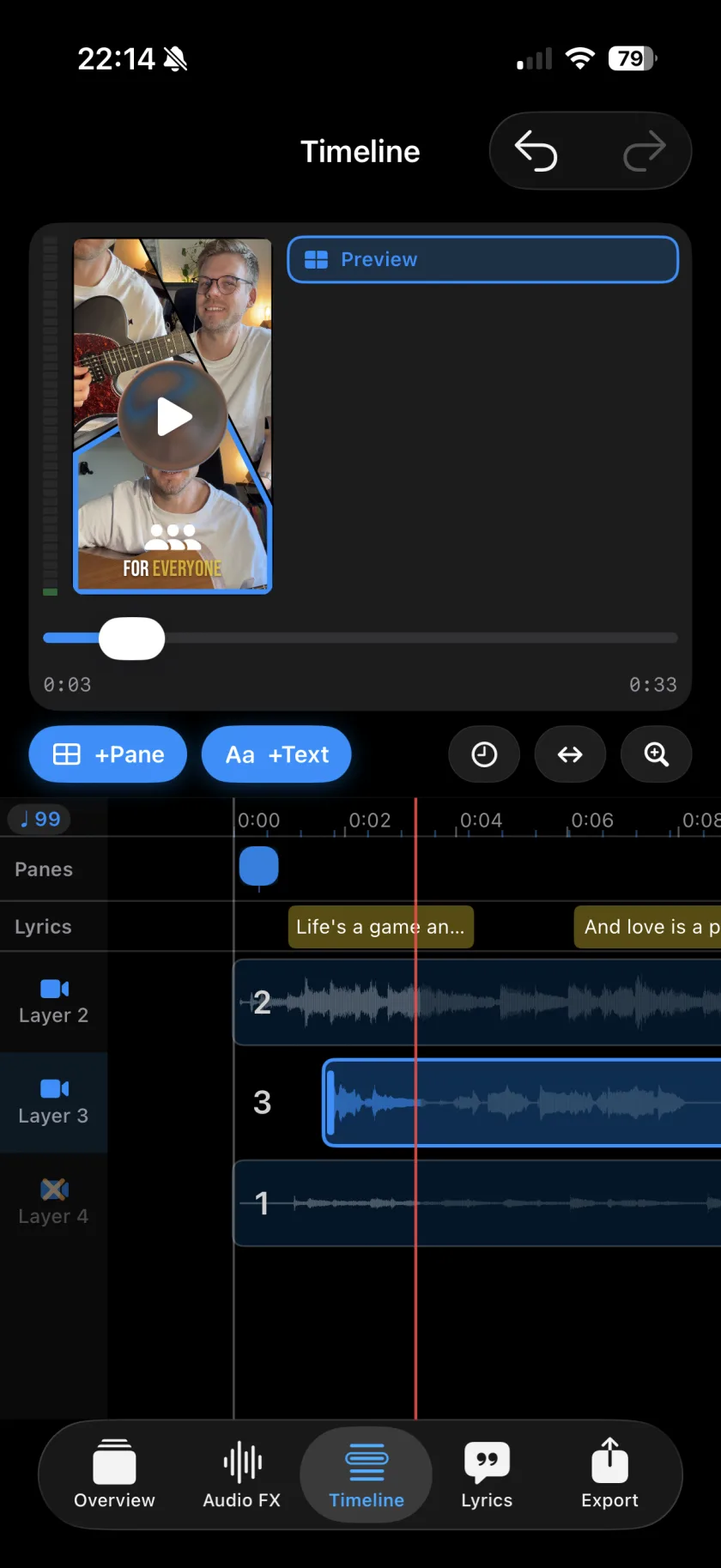
Its own volume and effects, and you can trim it on the timeline.
-
Auto Align
Lines a take up with the song after you recorded it.
-
Effects on your voice
Reverb, echo, EQ, compression and 12 voice styles, free.
-
Which songs can I use?
Any audio file you have in Files (m4a, mp3, wav, aiff or caf), or music you play yourself on the first layer.
-
Can I play the song through the speaker instead?
Yes, but the microphone then records the song a second time, and it sounds doubled in the video. Headphones keep your take clean.
-
Can I add more takes to the same song?
Yes. Every take goes on its own layer, up to 10: a harmony, a second angle, an instrument. See How to record a cover song video.
Musaic - Recording Studio is free on the App Store for iPhone and iPad, with weekly challenges and Ideas. Musaic Pro adds lyrics, animations, chord detection, Audio Lab and export without watermark.
- How to record a cover song video for Reels and TikTokGuide
- Headphones, AirPods and the speaker: recording without bleedGuide
- Audio effects for every layer of your music video: reverb, EQ and compressionGuide
Written for Musaic 2.1.0.