Video looks and effects: filters, aim, flip and rotate
Musaic has 15 video looks, from Cassette and Warm Vinyl to Noir, Comic and VHS, each with a Strength slider. You apply a look to one layer or to all layers, and with Aim you can grade only the person or only the background. Flip and Rotate fix a take that was filmed the wrong way round. Video FX are free.
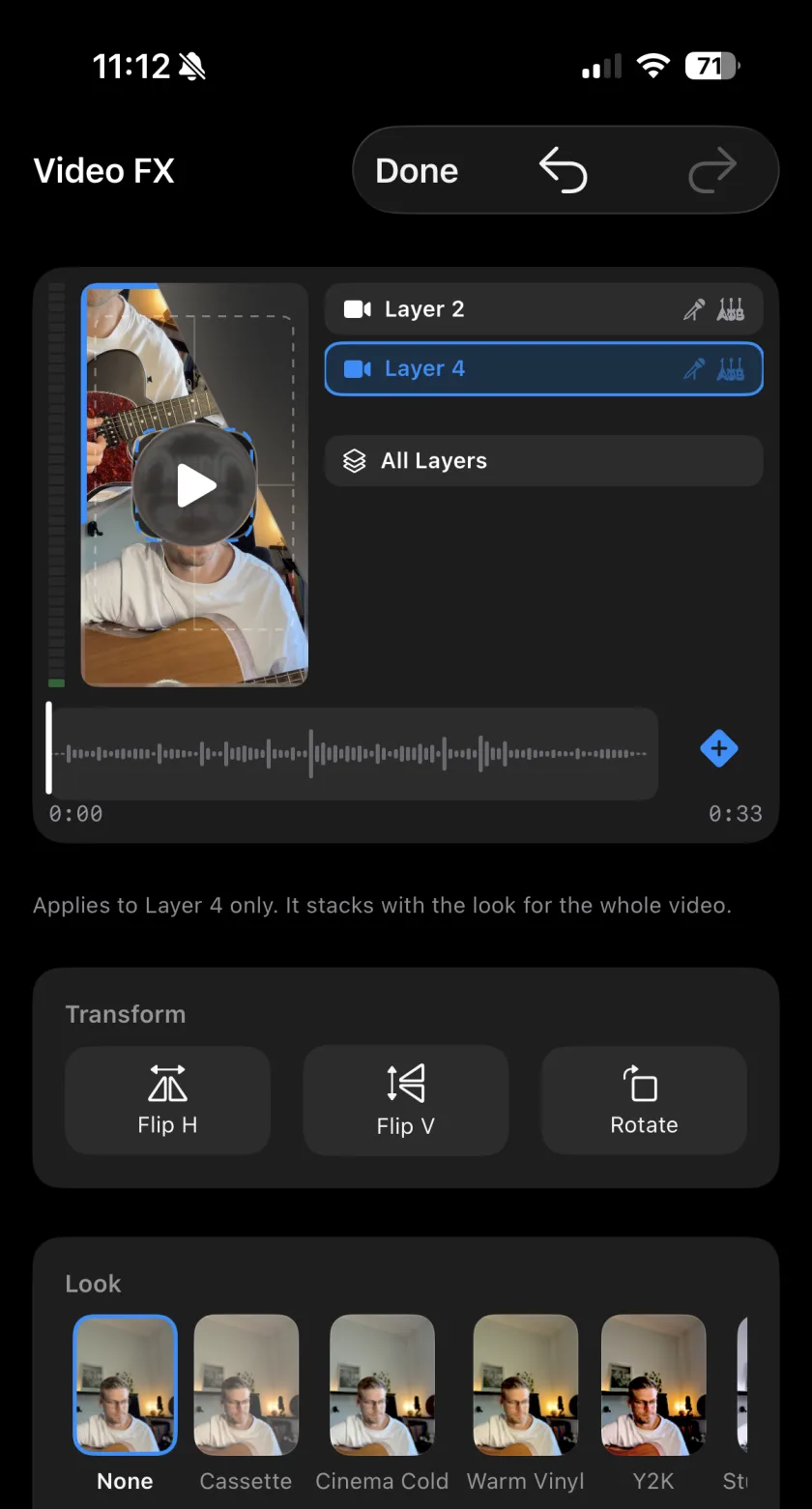
You need: A video project: Mosaic, Live Studio or Twin.
-
Open Video FX
In the More tab, tap Video FX. Choose All Layers or one layer.
-
Pick a look
Swipe through the looks and tap one: Cassette, Cinema Cold, Warm Vinyl, Y2K, Studio Mono, Noir, Silver Fade, Faded, Soft Focus, Comic, Cel, Blockbuster, Bleach, Halftone or VHS.
-
Set the strength
Strength decides how much of the look is applied.
-
Aim it at one part of the picture
For a single layer, Aim applies the look to the Whole picture, only the Subject or only the Background. Instrument counts as subject keeps the guitar with the person.
-
Flip or rotate
Under Transform, use Flip H, Flip V and Rotate in 90° steps.
-
15 looks
Film, print and retro looks, each with a Strength slider.
-
Aim
Grade only the person or only the background of a layer.
-
Transform
Flip a take horizontally or vertically, or rotate it in 90° steps.
-
A look on a layer and one on the whole video?
They stack. The look of a single layer is applied on top of the look for the whole video.
-
Are the looks Pro?
No. Looks and transforms are free.
Musaic - Recording Studio is free on the App Store for iPhone and iPad. Musaic Pro adds lyrics, animations, chord detection and Fix audio, and removes the watermark.
- Audio effects for every layer: reverb, EQ and compressionGuide
- How to appear twice in the same video on iPhoneGuide
Written for Musaic 1.4.0.